
Examples of Dates & Times and their corresponding formats
When setting up a “Receipt Printing” the system allows you to customize the settings, add logo, etc. One of the settings you can change is the Date & Time format. Here are the steps & some examples of date & time format that you can use.
Steps
-
Log in to your account https://admin.localforyoucarts.com/login
-
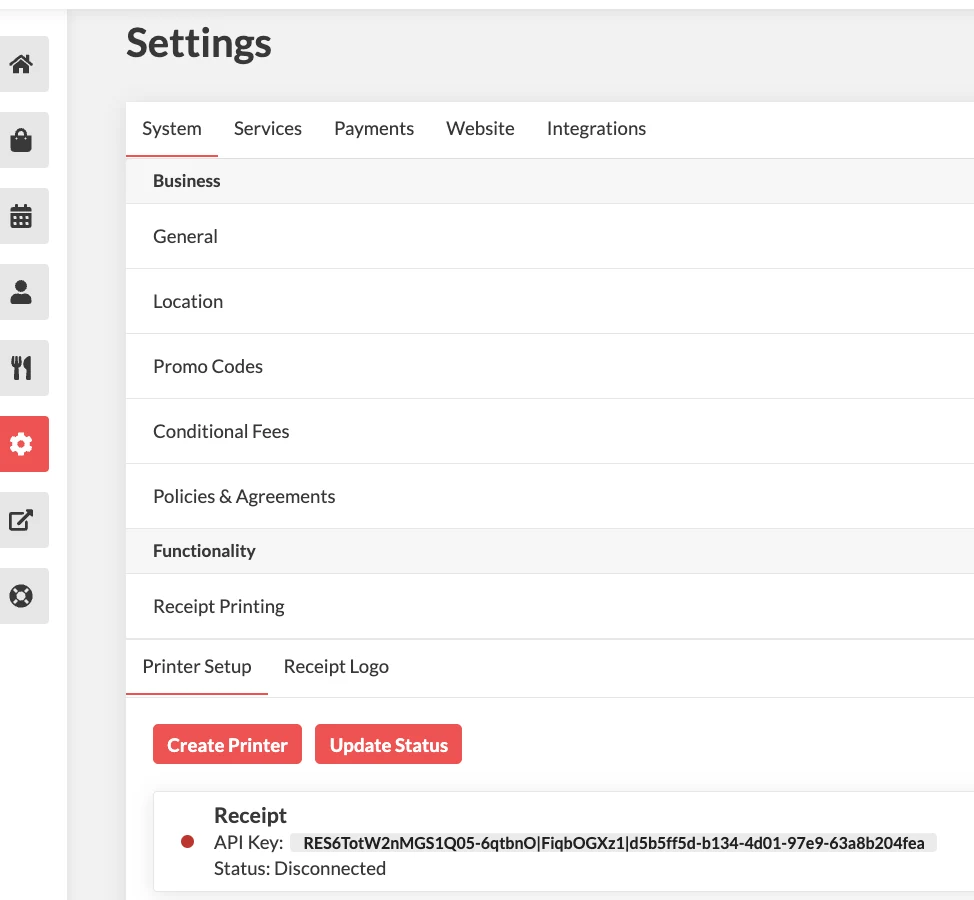
Go to Settings > System > Receipt Printing > Printer Setup > Click on the current printer
-
Under General Section , scroll down to Override Date Format & Override Time Format

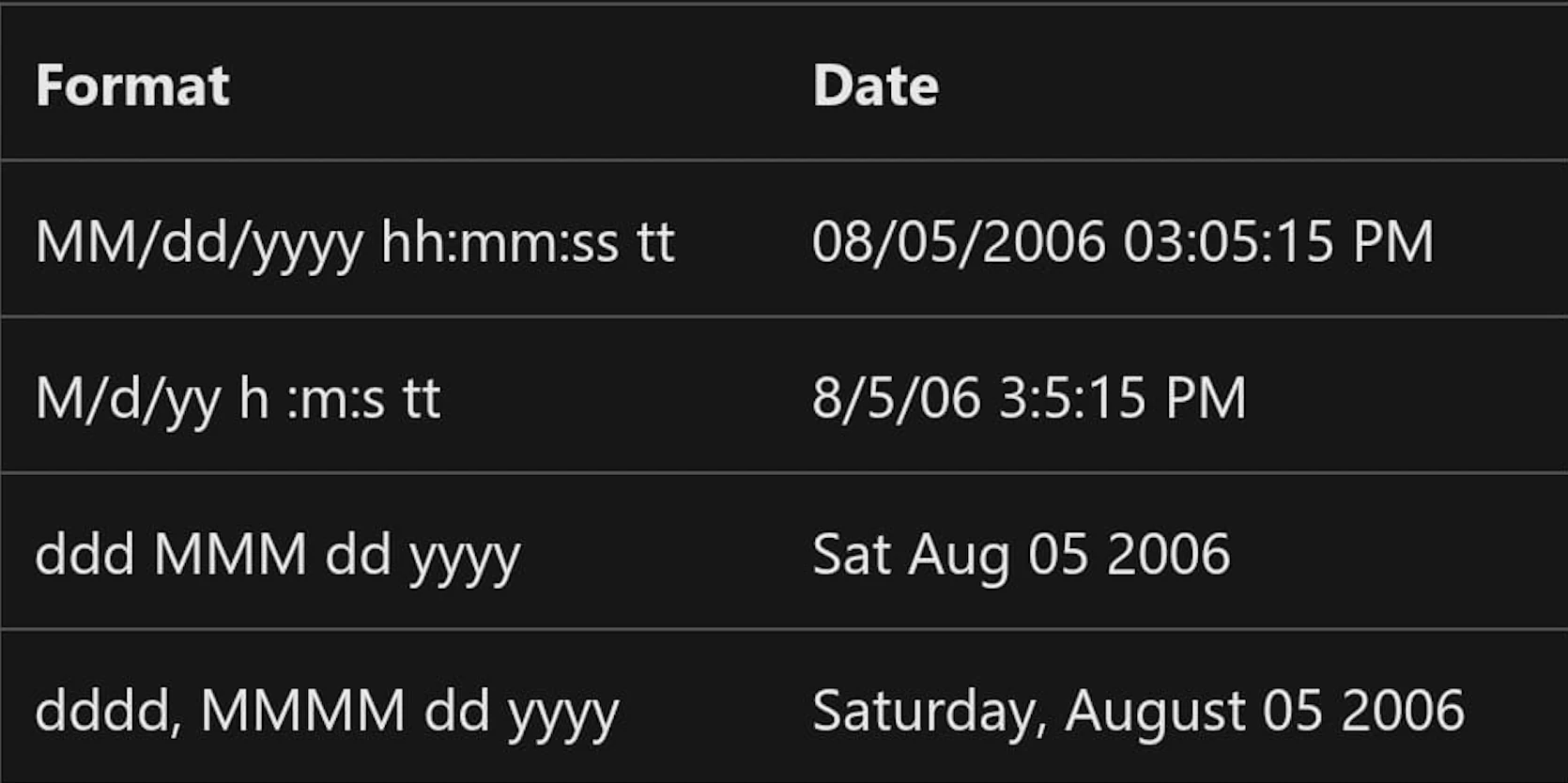
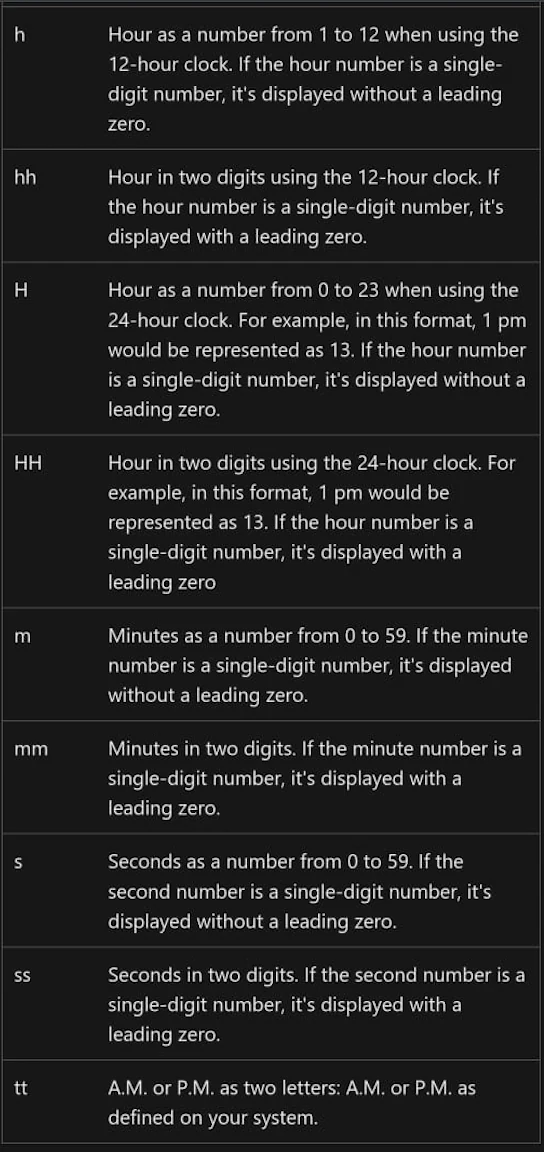
Here are some examples of dates and times and their corresponding formats:

\